FACEBOOK SETUP & ADVERTISING
Start Here: Set Up & Promote Your Page
Four detailed guides to connect your Facebook presence with your personalized VAbuying.com buyer page. Follow the numbered examples, practice each step and save before sharing with VA buyers.
The connection: your ad’s Website URL is your personal public page address. The Learn More button opens that destination.
Personal profile or business Page?
Your personal profile is the identity you use to sign in and manage a business Page. Your Page is your public business presence. Creating a Page does not automatically make your existing personal posts public.
Use Facebook’s profile switcher to choose the identity you intend to post as. Confirm the name and photo before posting. On a personal profile, check the audience for each post. You do not need to give this platform your Facebook password.
TUTORIAL 1 · YOUR BUSINESS IDENTITY
Set Up Your Facebook Business Page
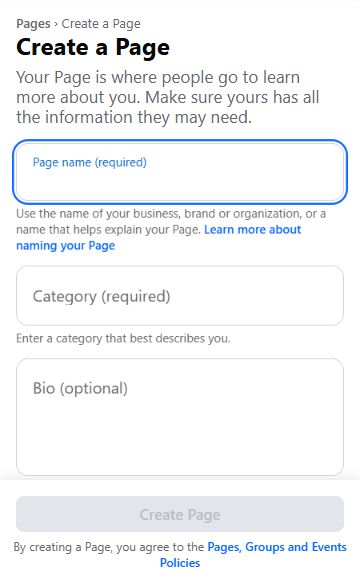
- Sign in and choose Pages. Use the personal profile that will manage your business Page. Open the available Create a Page option. Already have a business Page? Update it instead of creating a duplicate.
- Add your name and category. Use your own professional or business identity and an available category that accurately describes your work.
- Write a clear bio. Explain whom you help and the areas you serve. Add your brokerage or lending company and the disclosures your company requires.
- Review and finish in Facebook. Read Facebook’s terms before you create the Page. Add a professional photo, cover image, business phone and email you intend to make public. Use your own approved images.
- Check your Page. Confirm your posting identity, contact details and phone layout before promoting it.
Step 1 of 4: Sign in to Facebook with the personal profile that will manage your business Page.
Move at your own pace.TUTORIAL 2 · MAKE YOUR PAGE YOURS
Personalize Your VAbuying.com Page
Your name, company, contact information and professional photo2 · Your message
Headline, introduction and accurate service area3 · Publish & save
Review your member page before sharing4 · View & copy
Test your public destination on a phone
Illustrated workflow, not a screenshot of the editor. Available tools depend on your account and role.
- Open My Buyer Page in your member workspace. Complete your name, company, business phone, service area and applicable license details. Loan officers use their individual and company NMLS information. Confirm your email if prompted.
- Upload your professional photo and optional cover. Use the available fit, zoom and position controls. Review both Desktop and Mobile previews.
- Personalize your headline and introduction. Keep your company and professional disclosures accurate. Have your responsible broker or company review the page and marketing before use.
- Choose Publish my page when available, then use the editor’s Save page / Save my page action. Your 14-day trial begins on first publication. A public demo does not publish your member page.
- Open your public page, confirm your name, photo and contact options, and test it on your phone. Your visitor should not need your dashboard sign-in.
Get, copy and paste your page link
- Find your address. In the editor, look for Your personal page link. If the editor groups it under Account, publishing & advertising details, expand that section.
- Copy. Use Copy page link or the toolbar’s Copy Link. Look for the copied confirmation. If copying is blocked, select the complete public address and copy it manually.
- Paste on a computer. Click the destination field and use Ctrl+V on Windows or Command+V on Mac. You can also right-click and choose Paste.
- Paste on a phone. Touch and hold the destination field, then select Paste.
- Check the full link. Your public address has this structure:
https://vabuying.com/platform/?page=buyer&slug=your-page. Replace the example with your actual saved address. Do not share a dashboard, editor or login URL.
Text your published professional page
Save your changes, then use Text it to yourself beside the personal page link, or paste the copied link into a message to yourself. Open it and check your photo, name, company and contact path. Messaging apps control link previews; a preview may take time to refresh.
In a public demo, a sample preview link is temporary. Use your published member page for real marketing.
Step 1 of 4: Open My Buyer Page in your VAbuying.com member workspace.
Move at your own pace.TUTORIAL 3 · CONNECT YOUR AD
Send Facebook Ad Traffic to Your Page
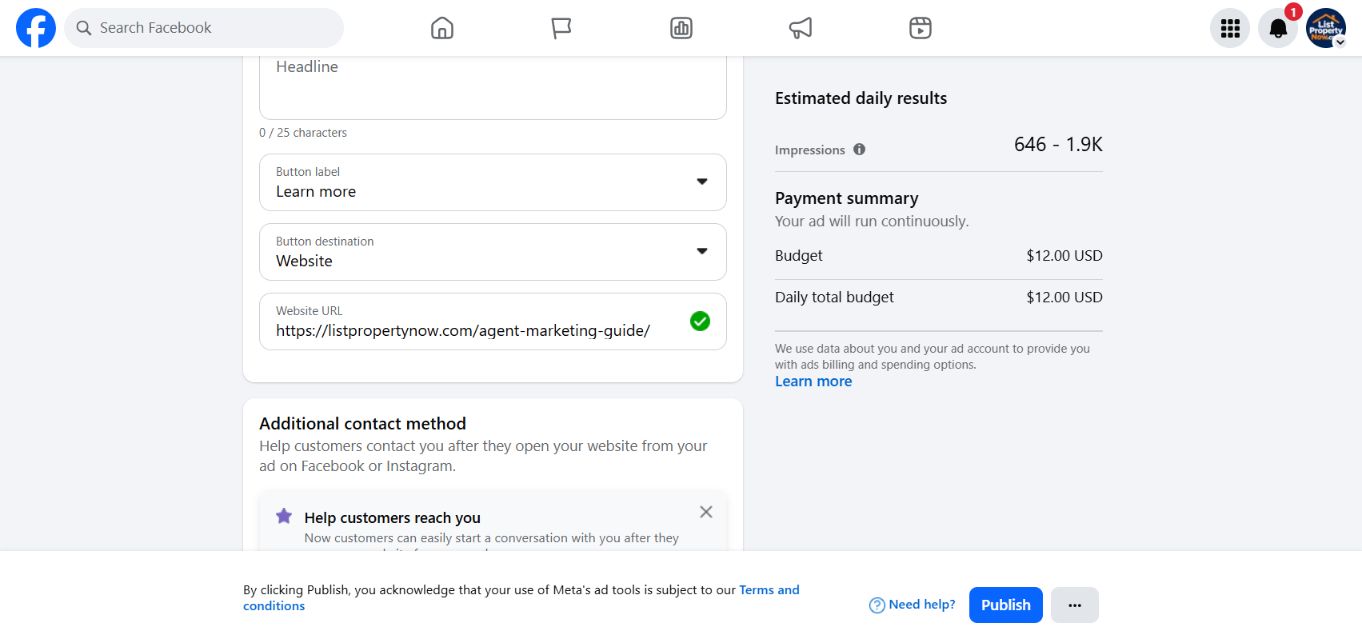
- Prepare your material. Open Marketing materials, choose a graphic, personalize it and review the contact details and disclosures. Save and download the approved design.
- Open Facebook’s ad tools. Switch to your business Page and choose an available goal that supports website visits. Add your approved graphic, headline and text.
- Connect the destination. Where offered, choose Button label: Learn More and Button destination: Website. Paste your complete personal page address into Website URL. The button’s label is not the destination address.
- Preview and test. Open the destination from the preview. Confirm your own page loads with your name, photo and company. Review the mobile placement too.
- Review before spending. Follow the advertising platform’s applicable housing-related category and audience restrictions and your company’s requirements. Review budget, dates and placements. Publish only when you are ready to pay Meta. Advertising costs are separate from your platform membership.
Your approved graphic + message → Learn More → your published buyer page → visitor contacts you.
This guide does not create an ad or trigger advertising spend. Results are not guaranteed.
Step 1 of 4: Open your business Page’s ad creation tools and choose an available website-visit goal.
Move at your own pace.TUTORIAL 4 · SHARE WITHOUT AD SPEND
Share Your Page Without Running Ads
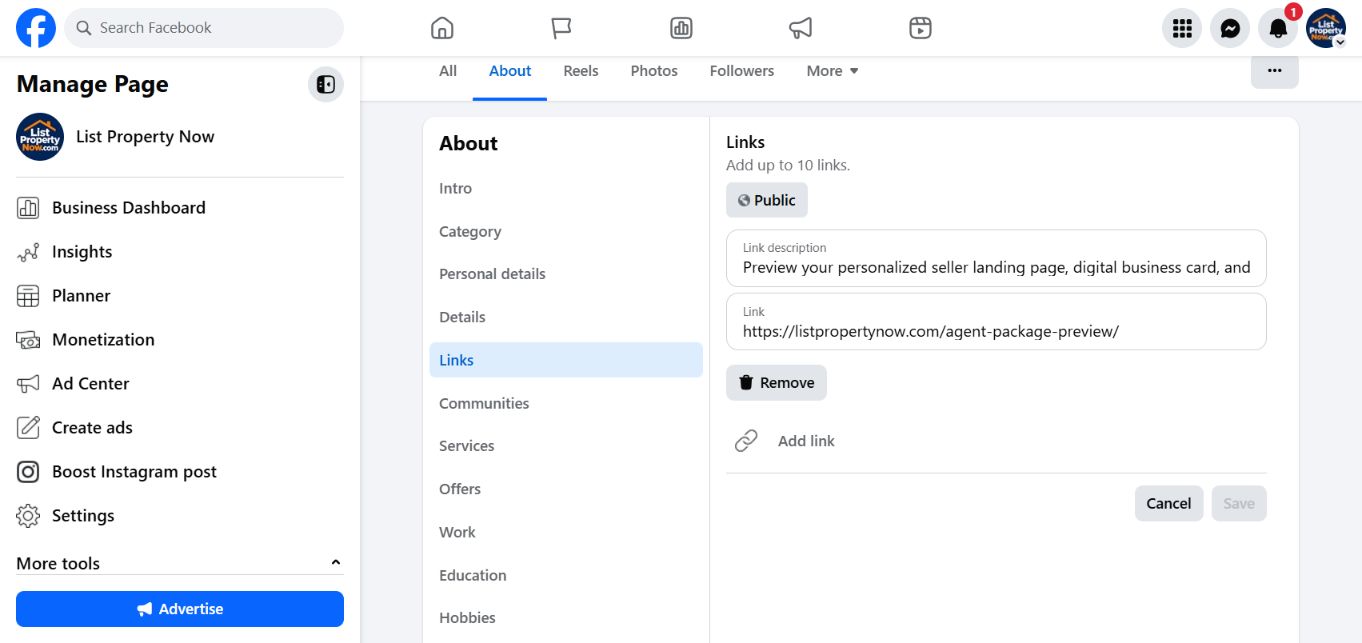
- Add your business Page link. Switch to your Page and open its website/contact information or About → Links settings where available.
- Add a helpful description. For example: “Explore my buyer page and contact me about your next steps.” Paste your full public URL and save. Open the saved link to test it.
- Create a useful post. Write a short introduction with your personal page link. Check the preview and your company’s disclosures. Pin or feature it if that option is available.
- Use your personal profile intentionally. Switch identities before posting there and choose the audience you intend. An ordinary post does not acquire an ad’s Learn More button; the link in the post is the destination.
- Share elsewhere. Add the link to your email signature, appropriate networking messages or business profiles. Create your digital card and its QR code in Marketing materials. Check the stated QR destination before printing.
Planning to buy a home in [your area]? My page introduces my services and makes it easy to contact me about your next steps. [Paste your public page link] · [Your name, company and required disclosures]
Step 1 of 4: Switch to your business Page and open its website or About → Links settings.
Move at your own pace.START HERE · GETTING-STARTED CHECKLIST
Before sharing with VA buyers
- Customize and save. Personalize your message, photo and service area in My Buyer Page.
- Review your public page. Check your business phone, company, license information, disclosures and mobile layout.
- Prepare your marketing kit. Open Marketing materials. Save your digital card and download the graphic formats you intend to use. Publish your digital card when the selected QR destination requires it.
- Connect and test your social links. Use your public page address on your business profile and approved ads. Open each saved link after adding it.
- Test the contact path. On your public page, send a clearly labeled test inquiry using your own contact information. Check your dashboard inquiry section and designated inbox, including spam. Confirm receipt before promoting the form.
- Set up optional branded email. Follow the branded email instructions below. Confirm delivery before using the address in marketing.
- Keep support nearby. Keep your dashboard private. Use Sign in for account access, your dashboard for inquiries, and Support@VAbuying.com for platform help.
Promote Your Page · Sharing ideas
Business profiles and email signatures
Add your public link with a short description of your services. Keep your professional name, company and disclosures consistent. Test the link from a second device.
Helpful social posts
Share a useful local question or a description of how you help VA buyers. Add your link as a clear next step. Use approved, accurate wording and review the post preview before publishing.
Printed materials and QR codes
Scan your downloaded QR with your phone before printing. Check that it opens the destination named in the editor. Order a proof and review phone readability and required disclosures before a larger print run.
SOCIAL SHARING · YOUR PERSONAL CONNECTION
Share your digital business card
- Open Business Card & QR, review your name, company, contact options and required disclosures, then save or publish using the controls shown.
- Use the card’s own link when you want people to see your contact options first. Use your landing-page link when the message invites them to learn about your services.
- Confirm the destination named in the QR editor. Scan the downloaded code with a second phone before adding it to a graphic, business card or email signature.
- Use a short introduction: “Here is my professional page with my contact information and next steps. Let me know what questions you have.” Include your name, company and required disclosures.
Social wording you can personalize
“Have questions about your next home in [your service area]? My page explains how I help VA homebuyers and gives you a direct way to contact me. [Your public page link] · [Your name, company and required disclosures]”
Keep the post useful and specific. Review the preview before publishing. Avoid promises of results, approval or government endorsement.
PRINTED MATERIALS · PREPARE BEFORE ORDERING
Postcards, door hangers and printed QR codes
- Choose the right material. In Marketing Materials, select the available postcard, flyer, business-card or door-hanger format that fits your message for VA homebuyers.
- Personalize and review. Check the wording, name, business phone, company and required disclosures. Keep each material’s message consistent with the page or card it links to.
- Download each required side. For a two-sided postcard, prepare the front and back. Use the download format offered by that editor. Do not use an editor screenshot as print artwork.
- Check the QR destination. Scan the actual downloaded code on a second phone. Confirm the intended page opens without a dashboard sign-in, the contact options work and the page is readable on a phone.
- Ask the printer for a proof. Confirm finished size, bleed, safe areas, image quality and any mailing or hanger-cut requirements with the printer. Do not assume a preview image is the printer’s final production file.
- Approve a small proof first. Review both sides, spelling, contrast, phone readability and QR scanning at the final printed size before ordering a larger run.
Printing, mailing, delivery and production costs are separate from membership. Use distribution methods your company and the property or venue permit.
PAID ADVERTISING · A PRACTICAL LAUNCH PLAN
Plan, check and review a local campaign
- Choose one purpose. Decide what a visitor should do: learn about your services, view your professional card or contact you with a specific question.
- Prepare one destination. Save your page, open its public link on a second device and verify your company information and contact path. Use that public address, not an editor or sign-in URL.
- Match the message. Use an approved graphic and concise wording for VA homebuyers in the areas you serve. Keep the ad and landing page consistent.
- Review the campaign settings. Follow your company’s requirements and the advertising platform’s current housing or mortgage rules. Review permitted audience settings, placements, budget and end date before authorizing any spend.
- Preview before launch. Check the mobile placement, readable disclosures and the destination button. Confirm the link reaches your own page.
- Review what happens. Check visits, inquiries and the quality of the conversations against your objective. Pause and fix broken links, unreadable graphics or an unclear message before continuing.
Advertising spend is separate. These instructions do not create an ad, authorize payment or guarantee inquiries.
Search, local video and neighborhood visibility
For search advertising, start with questions related to the services you actually offer and direct visitors to a relevant page. Review the search platform’s current rules and your company’s approval process before launching.
For a short local video, answer one common question for VA homebuyers, identify yourself and your company, and provide one clear next step. Use approved imagery and wording; verify any factual claim before publishing.
For neighborhood visibility, share useful local information through business profiles, permitted community channels and appropriate printed outreach. Keep your licensed service area and professional disclosures consistent.
How to activate and use your branded address
- Publish your member page, verify your existing inbox and maintain eligible active trial or paid access.
- Open Branded email in your workspace. Review the available address and follow the setup controls shown for your account.
- Wait for the setup status and complete the delivery test. If it remains pending or fails, use the help on that page or contact platform support before sharing the address.
- Send a test message to the branded address and confirm it reaches your existing inbox, including spam checks. This is incoming forwarding, not a separate mailbox. Replies normally use your existing address. Forwarding pauses when eligibility ends.
Requesting setup and confirming delivery are separate steps. The guide does not activate an address automatically.
Independent marketing technology. Not affiliated with or endorsed by the U.S. Department of Veterans Affairs. Financing questions belong with a qualified loan professional; no eligibility, approval or rate is promised.
Independent training resource; not affiliated with Meta. Facebook screenshots were captured October 15, 2026. Check Meta’s Page creation help and special ad category guidance for current account-specific instructions.